Linux and Shell Scripting-devops : 2
Passionate Computer Science graduate with a strong foundation in software development, eager to contribute to innovative projects and make an impact in the tech industry. Proficient in JAVA , JavaScript with hands-on experience in Node JS.
Linux is a free, open-source operating system (OS) based on the Unix operating system, designed to manage computer hardware and software resources. It acts as an intermediary between the user and the hardware, facilitating the execution of applications and services.
Open source
Free
Secure
Very Fast
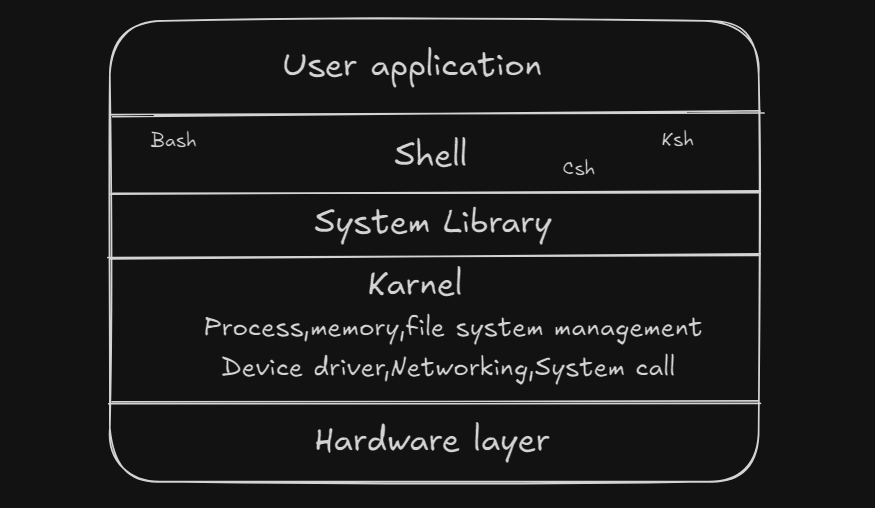
Karnel : The core of the Linux operating system, managing hardware resources and communication between hardware and software.
Shell : The command-line interpreter that allows users to interact with the system by executing commands and scripts. Translates user commands into kernel-level instructions. Shells like Bash, Zsh, and others provide various functionality for command execution and scripting.
System Library : These libraries contain the essential functions and utilities that applications need to interact with the kernel without directly invoking system calls.
For example: GNU C Library (glibc), which provides functions like file handling, memory allocation, and process management.
Important commands
pwd: Prasent working directoryls: List all file and folderls -a: List all including hidden filels -l: List with other permission and size related informationls -lh: h use for human readable format
cd directory_name: Change directorycd ~: Home directorycd ../: Back
mkdir new_directory_name: Create directorymkdir -p new_directory_name/new_directory_name: Create parent directory if parent not present
rmdir directory_name: Remove directory but directory needs to be emptyrmdir -p directory_name/directory_name: Delete parent directory but all are needs to be empty.
touch file_name: Create new filecat file_name: Show the content of filerm file_name: Remove filevi file_name: Edit file or create new file for writefree: Check ram in the systemfree -h
nproc: Check number of cpudf -h: Check disk infotop: Show the linux process.history: To see all the commands that you have used.ps: Process statusps -ef:-ewill select all processes .-fwill provide a full-format listing for each process.
|: Pipe is use to send the output of a first comand to second one as inout.set: Thesetcommand in Linux is a built-in shell command used to configure shell options and control the behavior of the shell environment.set: Runningsetwithout any options will display all shell variables and functions that are currently set.set -e: Exit immediately if a command exits with a non-zero status (useful in scripts for error handling).set -x: Print each command to the terminal before executing it (debugging).set +e: Disable the-eoption.set +x: Disable the-xoption.set -o pipefail:set -edoes not catch any pipe failure. It use for detect pipefail.
find: Find use to find folder or files . It works recursively.find . -name *.sh: Find all the files that have .sh extension.-nameis case sensitive. Use-inamefor case insensitive.find . -type d -name src: Find all the directory that name src.-type ffor file and-type lfor symbolic link.
grep: Use to search in files.-i→case insensitive,-n→ show line number,-w→Find exact matching word,-c→count the occurence,-v: invert match.grep car car.txt: Search the car from car.txt.grep -n car car.txt: Show the line number.grep -c car car.txt: Show countcat car.txt | grep -n taxi: Find taxi.grep -nC 2 car car.txt: It tells grap to print two line before and after the matched line.
curl [options] [url]: Curl use to transfer data using various protocol.curl url: Fetch content from url.curl -o directory/filename URL: Fetch and save data in specified directory.
wget [options] [url]: Use to download file from server.wget url: Download the content.wget -b url: Download the content in background.wget -o file url: Redirect the output message to the specified file.
awk [options] [selection] inputFile: Use for text processing.awk '{print $1}' inputfile.txt: Print frist column.awk '{print NR " " $1}' inputfile.txt: Print frist column with serial number.awk -F"," ‘{print $1}’ inputfile.txt: -F is use to tell that the data is separeted by specified delimiter.awk '{if($2 > 10000)print $0}' inputfile.txt: Print all the data that 2nd col value grater than 10000.print $0means print all the columns.awk '{if($2=="Night"){$3 =100} print $0} inputfile.txt: If col 2 value is Night then col 3 will be 100.awk '/Night/ {print $0}' inputfile.txt: Print the row that has textNightin any column.awk '{if(NR == "4") print $0}' inputfile.txt: Print 4th row.awk 'NR=="4"{print $0}' inputfile.txt: Print 4th row.awk 'NR=="4",NR=="10"{print $0}' inputfile.txt: Print 4th to 10th row.awk 'NF==0 {print NR}' inputfile.txt: Print empty row.awk 'END {print NR}' fileinput.txt: Print number of row.awk 'BEGIN {for(i=0;i<=10;i++) print i;}': For loop.awk 'BEGIN {while(i<10){ i++; print "Num is " i;}}': While loop.
kill [-SIGNAL] <pid>: The kill can send a variety of signals to a program. By default it sendTERMsignal if signal is not specify.kill -HUP <pid>:HUPmeans hang up. It's sent automatically when a terminal window that started a process is closed before terminating the process.kill -INT <pid>:INTmeans interrupt, and it sends the same signal used when we pressctrl-Cin the terminal, which usually terminates the process.kill -KILL <pid>:KILLis not sent to the process, but to the operating system kernel, which immediately stops and terminates the process.kill -TERM <pid>:TERMmeans terminate. The process will receive it and terminate itself. It's the default signal sent bykill.kill -CONT <pid>:CONTmeans continue. It can be used to resume a stopped process.kill -STOP <pid>:STOPis not sent to the process, but to the operating system kernel, which immediately stops (but does not terminate) the process.
trap [-options] "piece of code" [signal name or value]: It execute specific code in response to the specified signal.trap "echo Hello World" SIGINT: Print Hello World everytime when you pressctrl+c.
Shell Scripting
Every .sh file (shell script) typically starts with #!/bin/bash (or a similar line like #!/bin/sh) . This is known as a shebang (also called hashbang).
The line
#!/bin/bashtells the operating system which interpreter to use to execute the script. In this case, it specifies the Bash shell as the interpreter.Without the shebang, the system might not know which interpreter to use, and it could default to a different shell, potentially causing the script to behave unexpectedly if it relies on Bash-specific features.
#!/bin/sh: Uses the default shell, which might be a different shell like Dash on some systems.#!/usr/bin/env bash: This is another common variant that finds the Bash interpreter in your system's environment, making it more portable across different systems where Bash might be installed in different locations.
How to run .sh file : ./file or sh file
Shell Script Example :
#!/usr/bin/env bash
#####################################
# Author :
# Date :
# version :
# About the script
#####################################
set -x
set -e
set -o pipefail
# Print memory status
free
# Print disk status
df -h
# Print processes
ps -ef